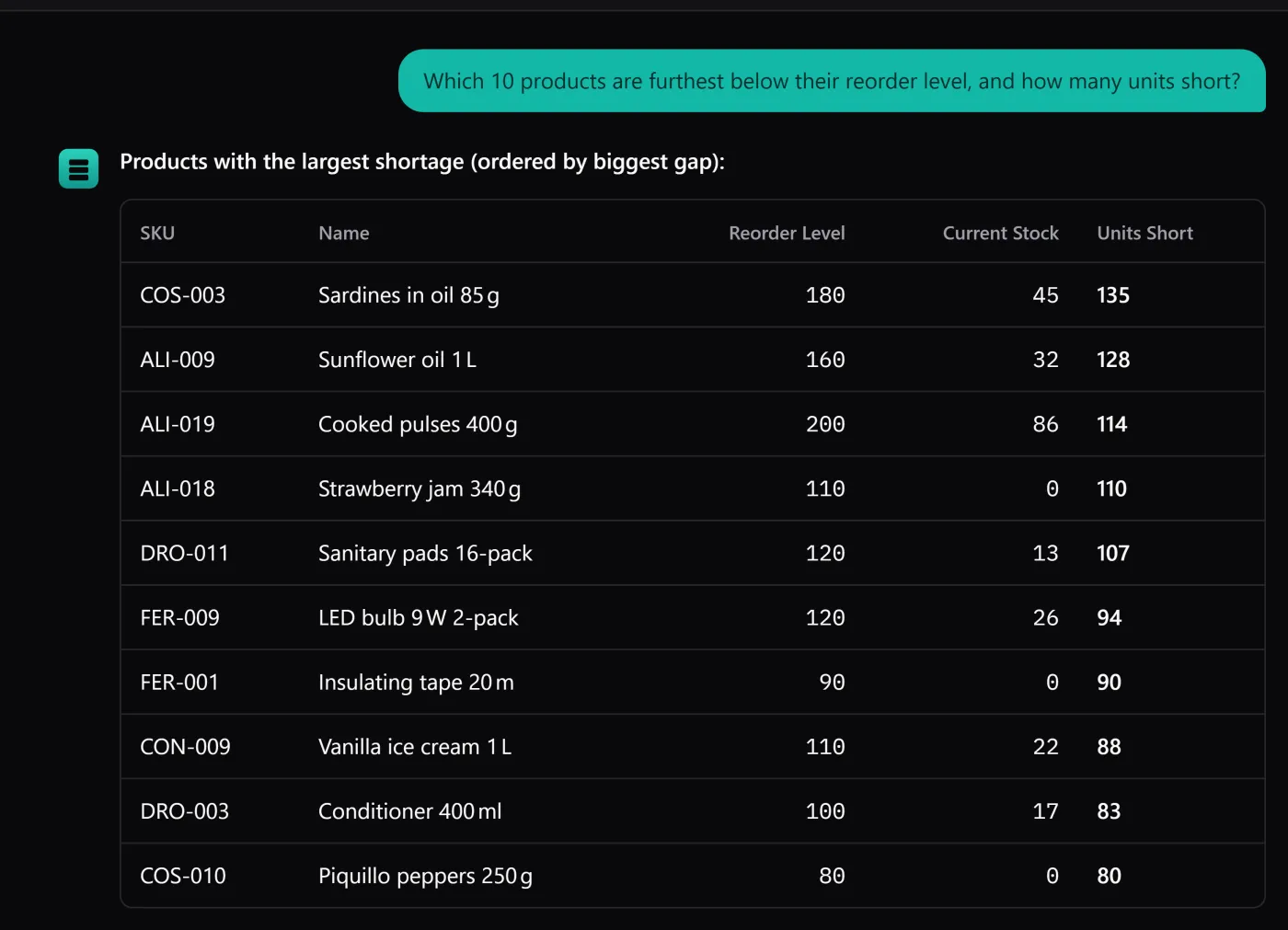
You can try BasicInventory’s AI assistant without paying anything and without installing a thing. The assistant runs on your own provider key — BasicInventory ships no key and resells no AI — and OpenRouter offers free models you can point it at. This is the five-minute version, and you can follow it in the browser demo while you read. There is a screen recording of the whole thing at the end.
Two honest notes before we start. First, the assistant is read-only: it reads your stock to answer, it never changes it — the AI inventory software hub and how the assistant works cover that in full. Second, the free tier is OpenRouter’s, not ours: free models and whether they need a card are set by them and change over time. When the video was recorded, free models were available without a credit card.
What you need
- BasicInventory. Use the browser demo — the whole application on a sample warehouse, nothing installed, no account, and everything gone when you close the tab — or the desktop app on your own data.
- An API key from an AI provider. The key is yours: you get it from the provider, and you pay them for whatever you use. BasicInventory includes no key and takes no cut. We will use OpenRouter, because one key reaches many models — including free ones.
Get a free OpenRouter key
- Create an account at openrouter.ai.
- After you sign up, the initial setup gives you an API key. Copy it.
- Keep it private. Anyone who has your key can use your account and spend your money — treat it like a password, and never paste it anywhere but the assistant’s settings.
Point BasicInventory at it
- Open the AI assistant and click Set up a provider.
- Select OpenRouter as the provider and paste your API key.
- For the model, choose Custom model and enter a free model id — in the video it is
openrouter/free. - Save. The assistant is now connected to OpenRouter, and the key is encrypted on disk the moment you save it.
That is the whole setup — no account with us, no registration, and nothing spent until you actually ask something.
Ask it something real
In the video, the warehouse holds 826 units of a beer pack across two locations, and the question is a picking one: “I need 300 units — give me the optimal locations to pick them.” The assistant checks the available stock and answers with where to pick from first, so you are not working out the order by hand.
Notice what happened and what did not: it read your stock and reasoned about it, and it left the stock exactly as it was. Acting on the answer — registering the exit, moving the pallet — is still yours to do, in the app. That is the line the assistant never crosses, and it is why a misread question cannot cost you inventory. For more of the questions worth asking, see what you can ask an AI about your inventory; for the picking logic itself, the FEFO guide.
From the demo to your own warehouse
The steps are identical in the desktop application: same Set up a provider, same OpenRouter key, same questions — now on your own data. The desktop edition is a one-time purchase, Windows only, with no subscription; the AI on top is cents on your own provider account, only when you ask, and nothing at all on a free OpenRouter model. The bring-your-own-key model explains why it is set up that way.
Watch it
The full setup, start to finish, is in this screen recording: Set up a free AI inventory assistant (YouTube). Or skip straight to the demo and do it yourself — it really is about five minutes.