Some businesses count stock as “how many units are on this shelf”. Others handle whole pallets, each one a tracked object with a code and a date. Boxes vs pallets is the choice between those two ways of seeing the same warehouse — and picking one shouldn’t trap you, because in BasicInventory it’s a setting, not a migration. Here’s what each mode is for and how to tell which is yours.
Boxes mode: stock in a location
In boxes mode the app speaks the language of a small operation: how many units of this product sit in location B-02-1. Nobody sees the word “pallet”, nobody types a code, and the screens stay short. You add stock, you remove stock, you move it between locations, and the number is always “units here”.
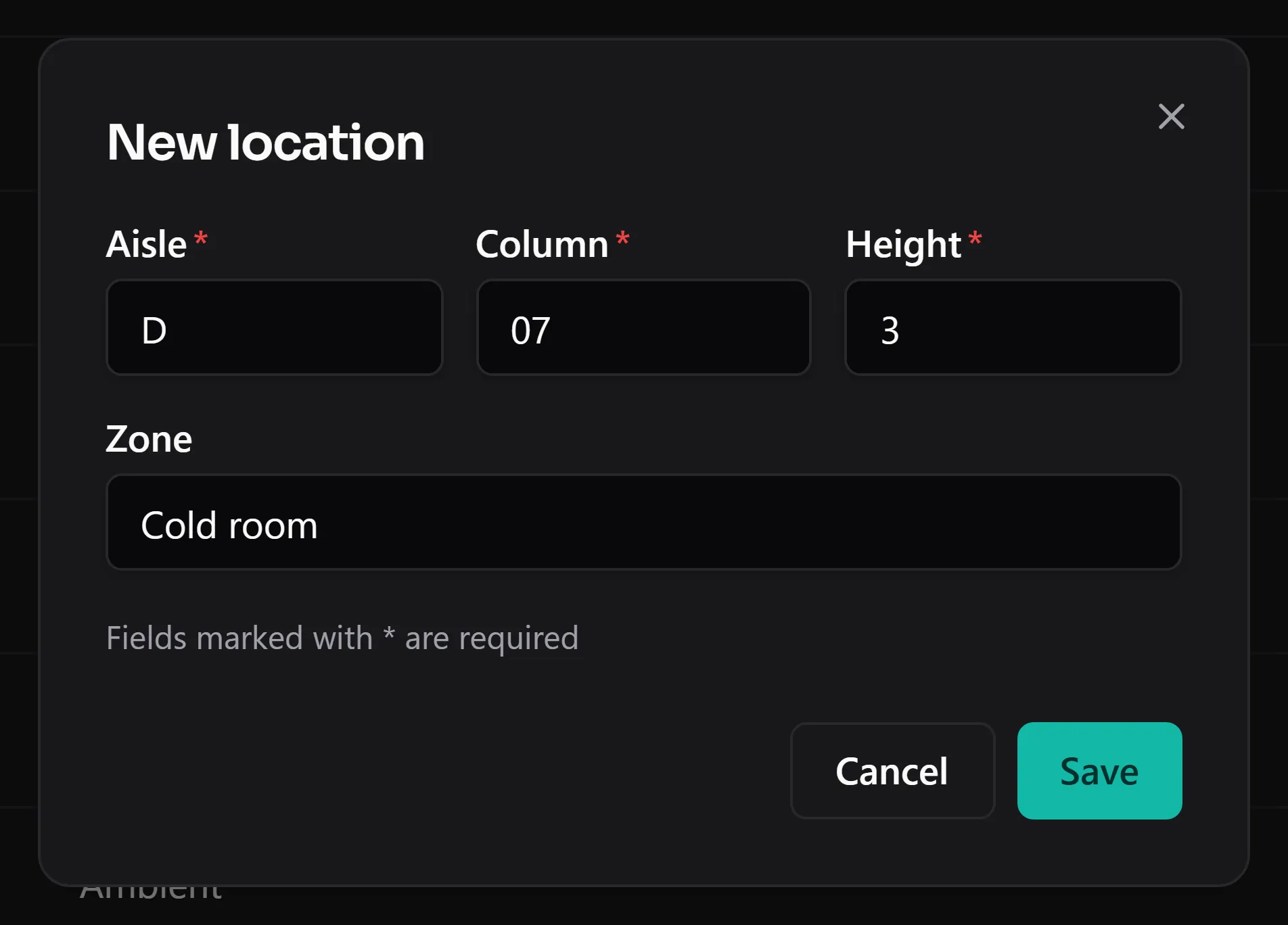
Boxes mode: stock per location, nothing on screen a shop doesn’t need.
It’s the right fit for a shop backroom, a workshop, or any business that thinks in items and shelves rather than logistics units. If that’s you, stockroom organization walks through setting it up, and the shop stockroom use case is written around this mode.
Pallets mode: every unit tracked
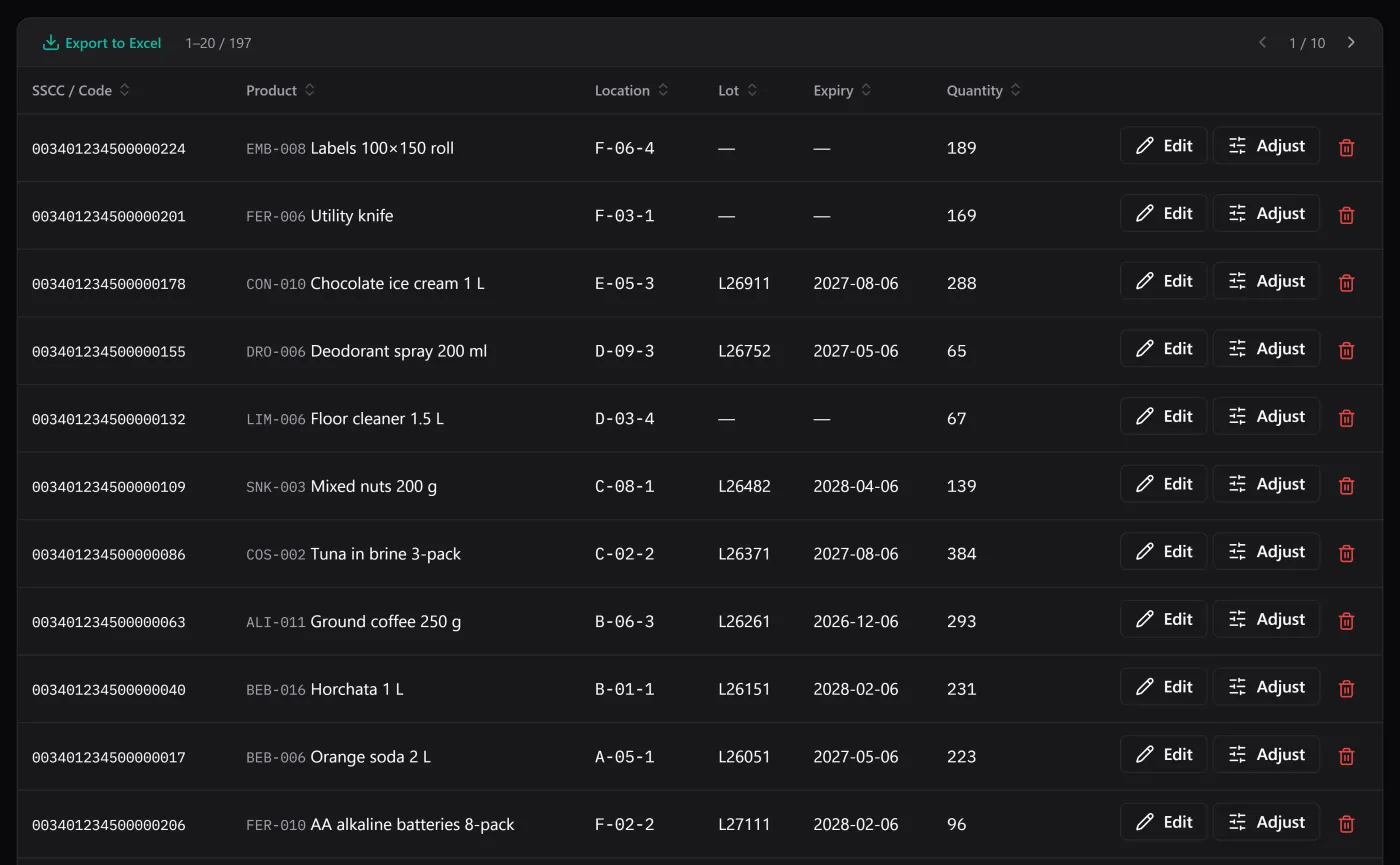
In pallets mode the same stock is shown as what it physically is: pallets, each with its own 18-digit SSCC code, its lot, its expiry date and its position. That’s what a warehouse receiving and shipping whole units needs, and it’s what makes traceability unit-by-unit possible — you can follow one specific pallet through its entire history.
This is the mode for a distributor, a cold store, or anyone whose stock arrives and leaves palletised. The food and drink distribution use case leans on it, because when the date on the box decides what ships, you need each unit individually identified.
The switch is a setting, not a migration
Here’s the part that removes the risk from the decision. Underneath, stock always lives on pallets. Boxes mode simply hides the ones you never asked about and generates their codes internally. So turning the mode on or off changes the words on the screen and nothing about your data — there’s no export, no re-entry, no migration project. Choose during first-run setup, and change your mind later with a click. Full detail in the boxes or pallets feature.
That means you can start simple. If you’re not sure, begin in boxes mode; the day you grow into pallet handling, flip the switch and your existing stock is already there, waiting, as pallets.
How to choose in one question
Ask: do you handle whole pallets as tracked objects, or do you think in units on shelves?
- Units on shelves, a shop or workshop, no SSCC in your life → boxes.
- Pallets in and out, lot-and-expiry traceability per unit, logistics codes → pallets.
If you’re between the two, boxes is the safer start precisely because switching costs nothing. You lose no capability by choosing simple first.
Either way, you can just ask
Whichever mode you’re in, the optional AI assistant answers the same plain-language questions — “how many units of product X do I have?”, “which pallet in aisle A expires first?” It reads your stock and answers; it never moves a pallet or changes a count. It’s off by default and runs on your own provider key at cents per question, so it’s there if you want it and invisible if you don’t.
The honest limits, same in both modes
The mode changes the vocabulary, not the boundaries. In either one, BasicInventory is single-user and Windows-only, holds no prices or customer records, and has no barcode scanner — you identify pallets by their code and their position, not by scanning. Those are the same trade-offs whether you count boxes or pallets, and they’re the shape of a tool built to do stock control well rather than everything adequately.
If any of the terms here are new — SSCC, lot, traceability — the inventory glossary defines them in one place. And the fastest way to feel the difference between the two modes is the demo: the whole application in your browser, where you can see pallet detail on real seeded stock. When you’ve decided, it’s a one-time purchase, and the mode is never locked in.